
How to edit, remove or add IPTV playlists on an LG TV
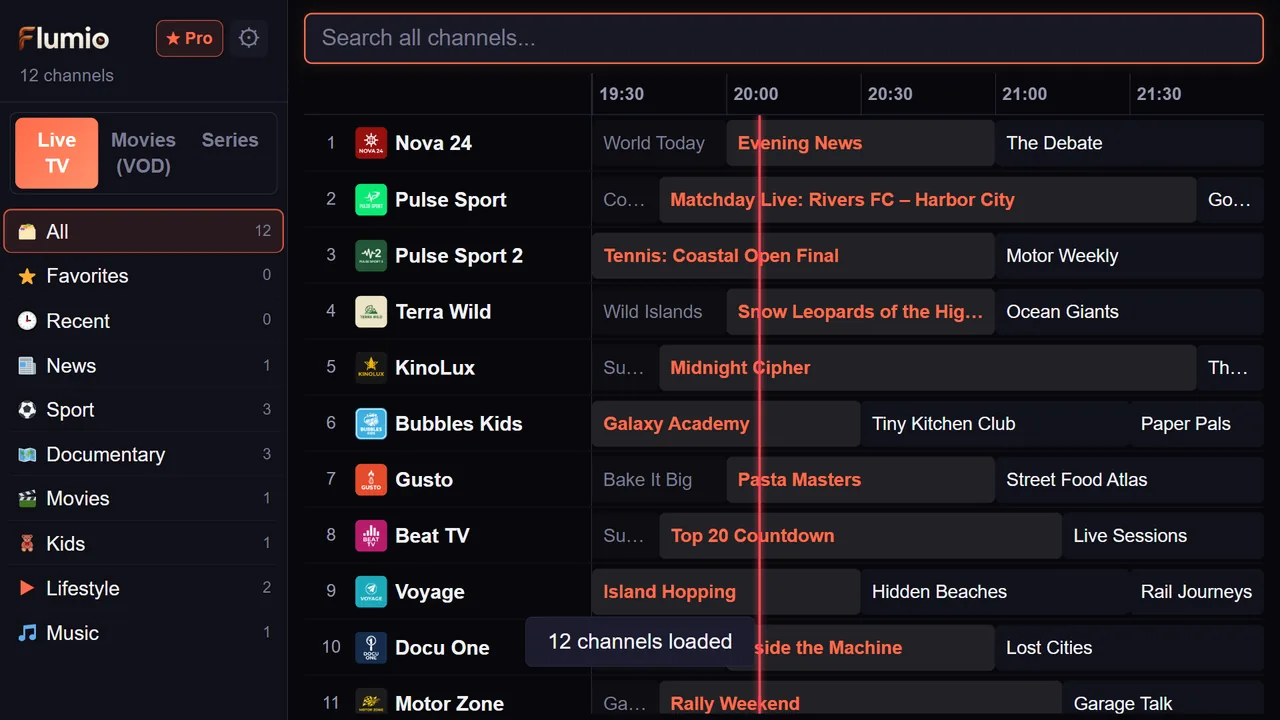
Your provider sent a new link, the password changed, or you switched providers altogether. All of that is done in one place in Flumio on an LG TV: the Playlists section of Settings. This guide shows how to change a playlist, remove one, and add more.
Open your playlists
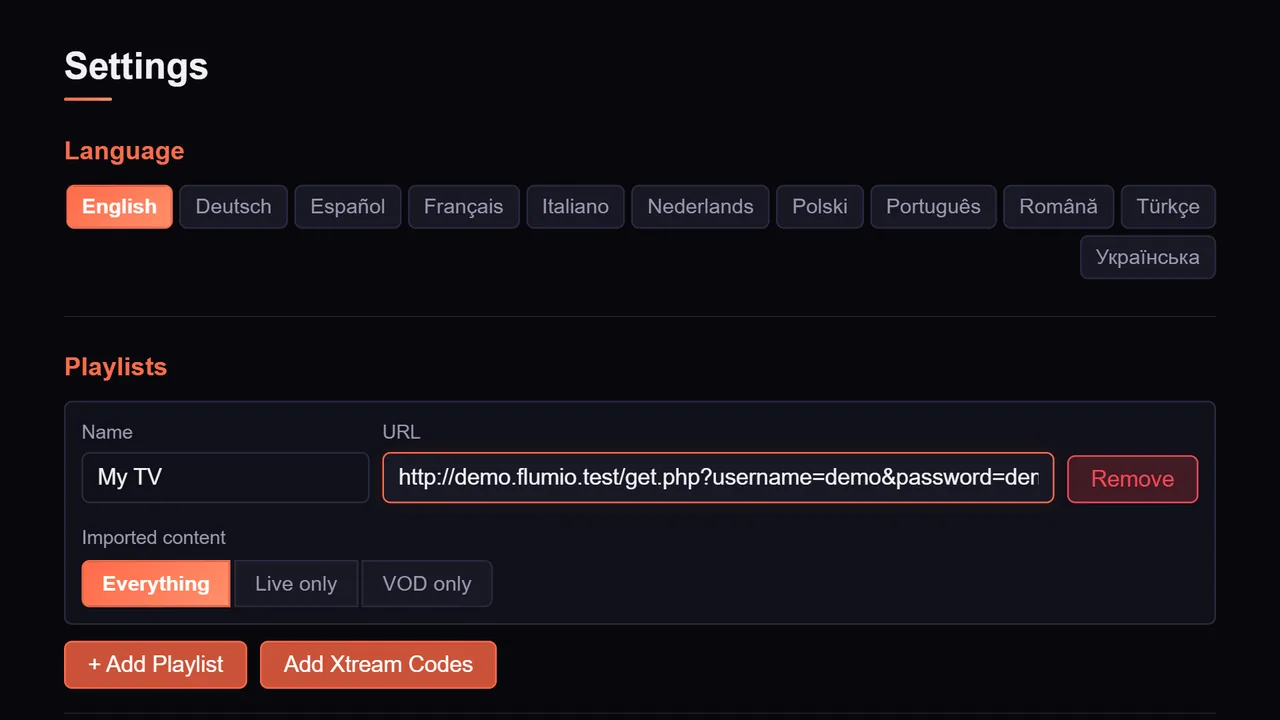
Open Settings with the gear icon at the top of the menu or the blue button. The Playlists section at the top lists each playlist as a card. A playlist added with a link shows its Name and URL; one added with an Xtream Codes login shows Name, Server host, Username and Password.
Change a link, login or name
- Move to the field you want to change and press OK to type.
- Type the new link, server, username, password or name.
- Choose Save & Apply at the bottom of Settings. Flumio loads the playlist again with the new details.
Cancel at the bottom leaves Settings without saving any of the changes.
Remove a playlist
- On the playlist's card, choose Remove.
- Choose Save & Apply.
Its channels disappear from the lists. Favorites and other choices for channels that are also in another playlist stay. If you remove the last playlist, Flumio starts again with the Add your first playlist screen.
Playlists sent from a phone or computer
Playlists you sent through the QR-code page aren't in the Playlists cards; they're listed under Upload Playlist further down in Settings, each with its own Remove button, which takes effect at once. You can also remove them on the upload page itself, under Playlists on the TV. To change one, send the new version and remove the old: see Upload an M3U file to an LG TV.
Add another playlist
- In the Playlists section, choose + Add Playlist for a link or Add Xtream Codes for a login.
- Fill in the new card.
- Choose Save & Apply.
The free version keeps one playlist; more than one needs Flumio Pro once the 7-day trial ends.
Load less from a big playlist
Each card has Imported content: Everything, Live only or VOD only. If you only watch live TV, Live only leaves out thousands of films and series, so the playlist loads faster and the TV has less to keep in memory. Change it, then Save & Apply.
Using several playlists
With more than one playlist, tabs at the top of the menu show one playlist at a time or all of them together. Channels that appear in two playlists with the same address are shown once.
Questions
My provider changed my password. Do I need to add everything again?
No. Edit the password (or the link, which contains it) on the playlist's card and choose Save & Apply. Your favorites stay.
I changed provider. What happens to my favorites?
Favorites belong to the old provider's channels, so they don't carry over to a new provider. Remove the old playlist, add the new one, and star your channels again.
Where is the playlist stored?
On the TV. Flumio doesn't copy your playlists to other devices; your phone keeps its own.