
IPTV parental controls on an LG TV: lock channels with a PIN
IPTV playlists often include categories you don't want children to open. Flumio lets you put whole categories, single films and whole series behind a 4-digit PIN, and hide them completely until the PIN is entered. This guide sets it up on an LG TV in a few minutes.
Short answer: In Flumio open Settings, set a 4-digit PIN under Parental controls and select the categories to lock. Single films and whole series are locked from their own screen, and locked content can be hidden from lists and search until the PIN is entered. Parental controls are free in every version of Flumio.
Parental controls are free in every version of Flumio. They keep children out of content on a shared TV; they are not meant to stop a determined adult.
Looking for the TV's own parental lock (the Safety menu, default PIN 0000)? See LG TV parental lock. This guide is about locking IPTV content inside Flumio.
Step 1: Set a PIN
- Open Settings: the gear icon at the top of the menu, or the blue button on the remote.
- Go down to Parental controls and choose Set PIN.
- Enter four digits at Enter a new PIN (4 digits), then the same four at Repeat the PIN. Flumio confirms with PIN saved.
Pick a PIN you'll remember but children won't guess: not 1234, not a birth year.
Step 2: Lock categories
Once the PIN is set, the Parental controls section lists your playlist's categories under Locked categories. Select a category to lock it: a padlock appears next to its name. Locking needs no PIN; taking a lock off does, so a child can't simply unlock it here.
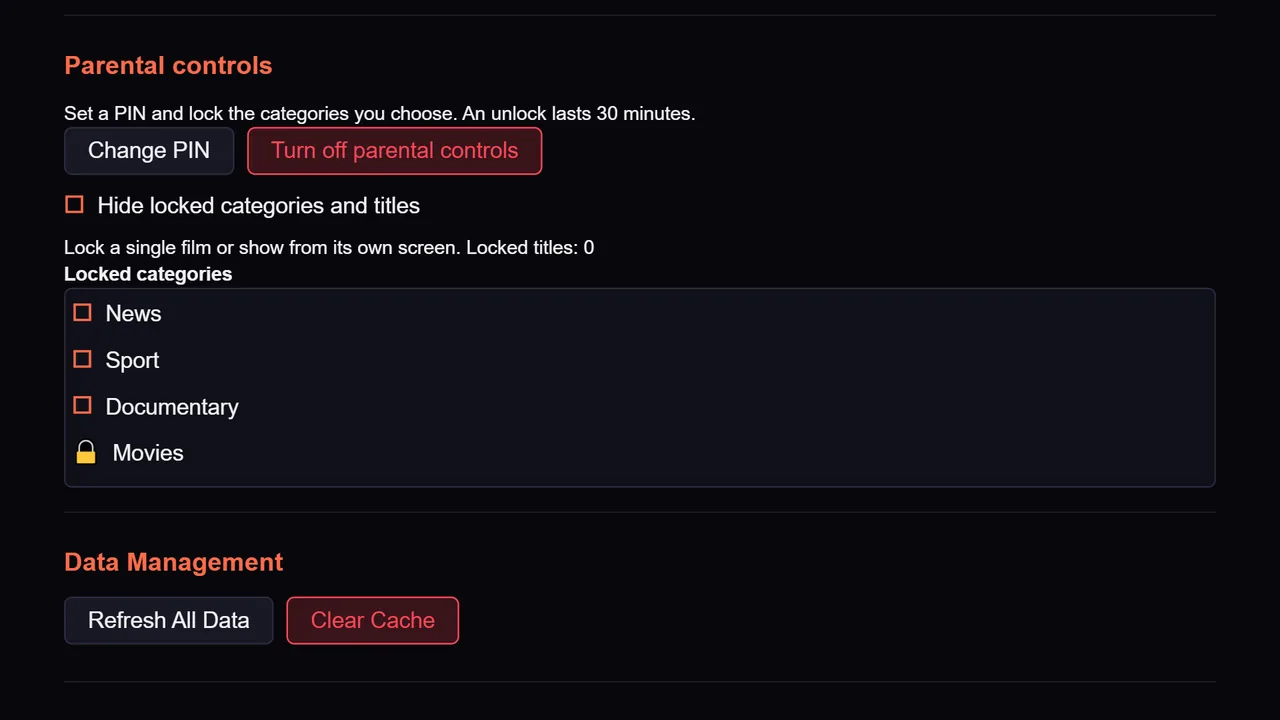
The category names come from your playlist. Providers usually group adult channels and films in categories of their own, which you can lock in one go.
Step 3: Lock single films and series (optional)
To lock one title instead of a whole category, open the film's own screen and choose Lock with PIN. For a series, open the show and choose the Lock with PIN card next to its seasons; this locks every episode. The same button, now Remove lock, takes the lock off.

Settings shows how many titles you've locked, under the Hide locked categories and titles option.
What happens when someone opens a locked channel
Flumio asks for the PIN before it plays anything locked, wherever it was chosen: the channel list, the TV guide or search. Without the right PIN, nothing plays.
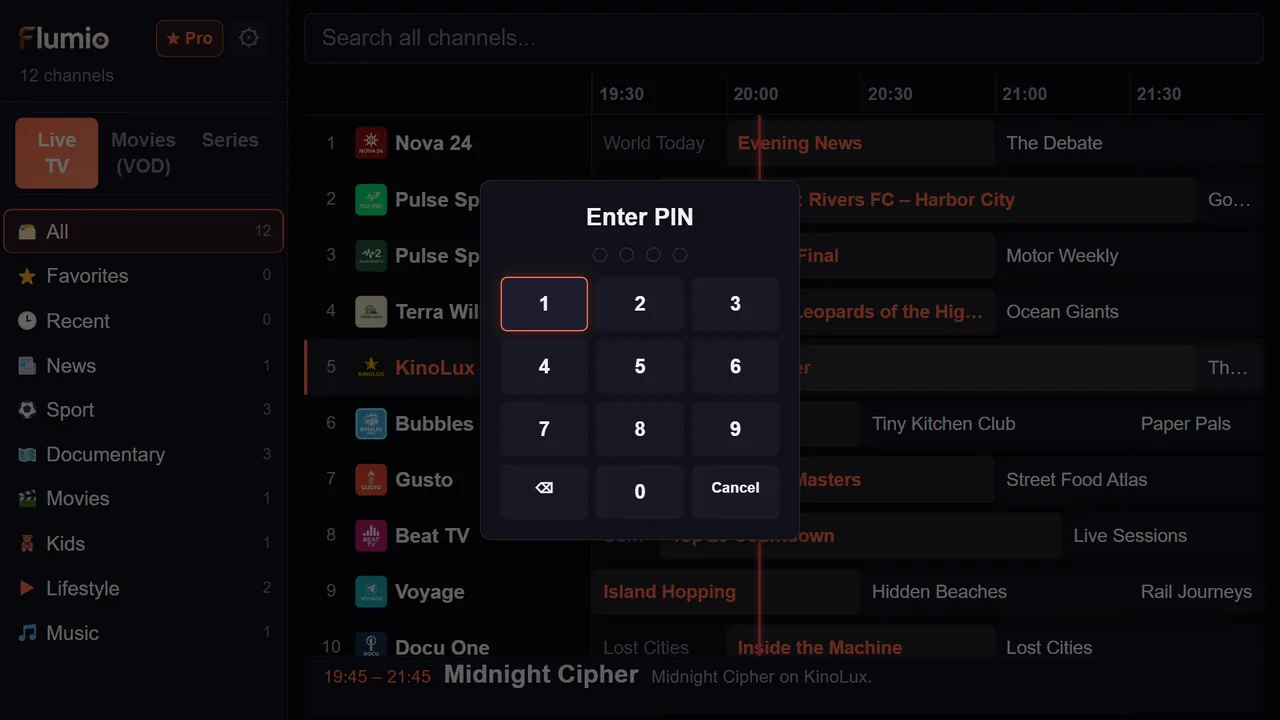
After the right PIN, everything locked stays open for 30 minutes, so you aren't asked again for every channel. It locks again by itself after that, and whenever Flumio restarts. To lock it straight away, choose Lock now in Settings.
Hide locked content completely
By default, locked categories and titles still appear in lists; they just ask for the PIN. Tick Hide locked categories and titles in Settings to leave them out of every list and search result until the PIN is entered. Turning hiding off again needs the PIN.
Changing or turning off the PIN
- Change PIN asks for the current PIN first, then the new one twice.
- Turn off parental controls asks for the PIN, then removes it together with every lock.
Questions
I forgot the PIN. How do I reset it?
Flumio can't reset it without the current PIN; that would let anyone remove it. Uninstalling and reinstalling Flumio clears it, but also clears your playlists and settings on the TV, so you'll need to add them again.
Can I lock a single channel?
Live channels are locked by category. Single films and whole series can be locked one by one from their own screen.
Do I need Flumio Pro for parental controls?
No, parental controls work in the free version too. Films and series, which you can lock one by one, are part of Pro.
Does the lock also cover the TV guide and search?
Yes. A locked channel asks for the PIN wherever you start it, and with hiding on, locked content doesn't appear in lists or search results at all.