
Start IPTV with one button on an LG remote
If IPTV is what you watch most, getting to it shouldn't take five clicks through the Home screen. An LG TV can open any app with one button on the remote, and Flumio can start the channel you watched last as soon as it opens. Together that's as close as it gets to switching on an ordinary TV.
Step 1: Put Flumio on a number key (Quick Access)
LG's Quick Access lets you open an app by pressing and holding a number button on the remote. It works on the Magic Remote and on the standard remote with number keys.
- Open Flumio.
- Press and hold a free number button, 1 to 8, for example 1.
- A window asks whether to register the app to that button. Choose Yes.
- From now on, press and hold 1 from anywhere, on the Home screen or in another app, and Flumio opens.
To change or remove the shortcut, press and hold 0: it opens the list of Quick Access buttons. Button 9 is reserved by LG. On some models the menu names and button range differ slightly; your TV's user guide has the exact steps.
A short press on a number key inside Flumio still jumps to that channel number. Only pressing and holding opens Quick Access.
Step 2: Put Flumio first on the Home bar
Press Home (the house button). On most LG TVs you can move an app by highlighting it and pressing and holding OK, or with Edit at the end of the app row; then move it to the front with the arrow keys and press OK. With Flumio first, Home and OK open it.
Step 3: Start the last channel automatically
- In Flumio, press the Blue button, or select ⚙ at the top, to open Settings.
- Go to the Playback section.
- Set Autostart last LIVE channel on startup to ON.
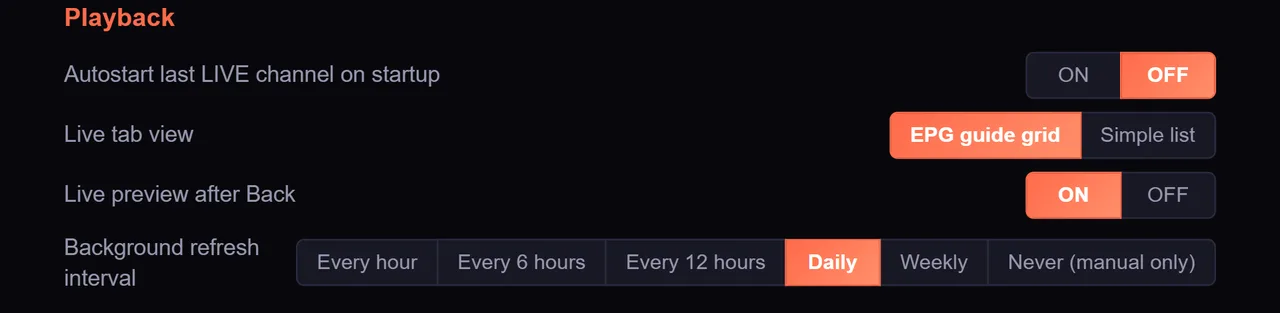
Next time Flumio opens, it goes straight to the live channel you watched last. If the last thing you watched was a film or an episode, it opens on the channel list instead, and your film waits in Continue watching.
Put it together
Turn on the TV, press and hold 1, and your channel is on. To switch, use Channel + / − or the number keys; press Red for the TV guide. The rest of the buttons are listed in the complete guide to IPTV on an LG TV.
Other settings on the same screen
- Live tab view
- EPG guide grid shows the schedule next to the channels; Simple list shows just the channels, which is quicker to scroll on a long list.
- Live preview after Back
- When on, pressing Back while watching keeps the channel playing in a small window next to the list, so you can browse without losing the picture.
- Background refresh interval
- How often Flumio fetches a fresh copy of your playlist in the background. Daily suits most people; choose more often if your provider changes channels a lot.
Questions
Can the LG TV open Flumio by itself when I turn it on?
Most LG TVs have no setting for that: they start on the Home screen or the last input. One held button with Quick Access is the quickest way, and Flumio then starts your channel on its own.
Does autostart work in the free version?
Yes. Autostart and Quick Access work with any playlist, free or Pro.
The autostart opened the wrong channel.
It opens the live channel you watched last in Flumio. Watch the channel you want, close Flumio, and it starts there next time.
I pressed and held a number but nothing happened.
Check that the button isn't already assigned to another app (press and hold 0 to see the list), and that you used a button from 1 to 8.