
Organize IPTV channels on an LG TV: favorites, categories and search
IPTV playlists often hold thousands of channels in dozens of categories, most of which you'll never watch. A few minutes of tidying makes the channel list feel like your own TV: your channels first, in your order, and nothing you don't need. Here's how in Flumio on an LG TV.
Short answer: In Flumio, add the channels you watch to Favorites and put them in your own order, hide the categories you never watch, and use search to find any channel, film or series. Favorites are remembered by the channel itself, so they stay when your provider updates the playlist.
Want to sort the TV's own antenna, cable or satellite channels instead? See Sort and edit channels on an LG TV. This guide is about IPTV channels in Flumio.
Build your Favorites list
- In the channel list, move to a channel you watch often.
- Press the green button. A star appears next to its name.
- Repeat for your other channels. Pressing green again on a starred channel removes it.
While watching, you can do the same from the channel list beside the picture: press Left to open it, then green. Films and series can be starred too, from the grid with green or with ☆ Add to favorites on their own screen.
Open Favorites at the top of the categories to see only your channels.

Put your favorites in order
In Favorites on the Live tab, highlight a channel and press Channel + or Channel − (CH ▲ / CH ▼) to move it up or down. The hint above the list reminds you. The order stays as you set it, even when the provider reorders its playlist.
Hide categories you never watch
- Open Settings (the gear icon or the blue button).
- Go down to Category Visibility.
- Untick each category you want to hide. Tick it again to bring it back.
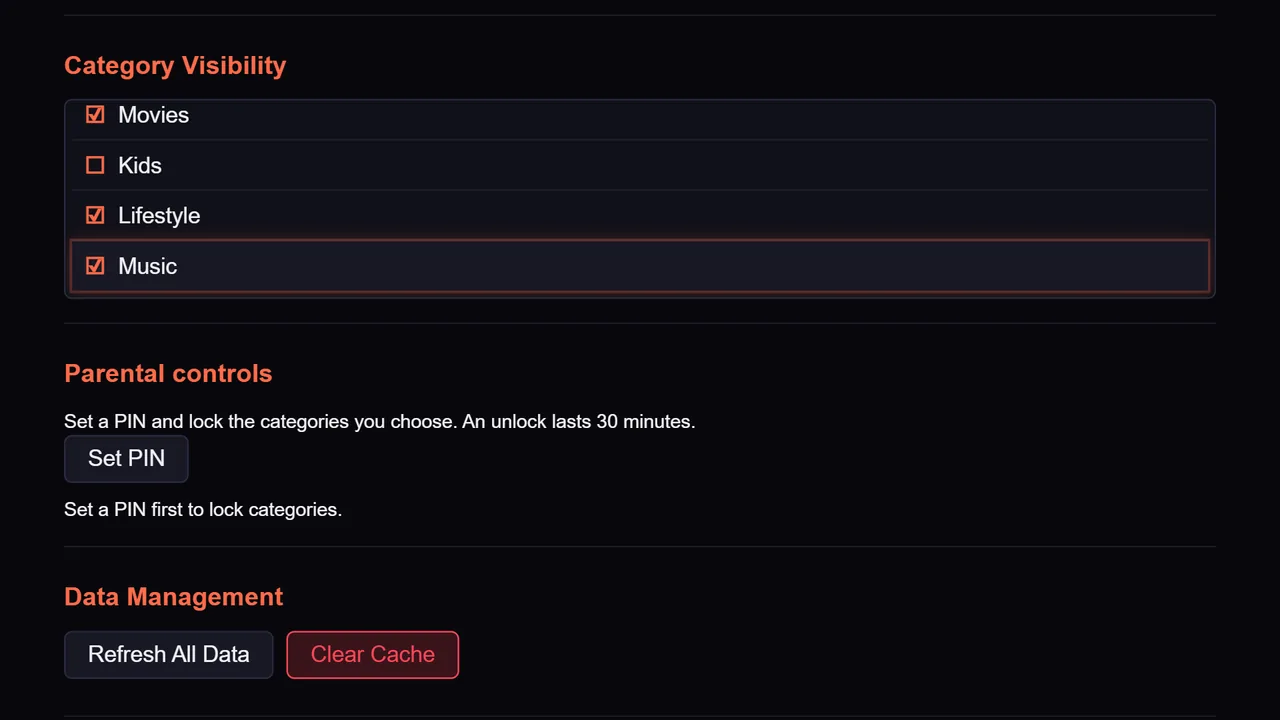
Hiding only tidies the menu; to keep children out of a category, lock it with a PIN instead: see Parental controls on an LG TV.
If the playlist is very large because of films and series you don't need, you can also import live channels only: choose Live only under Imported content for that playlist in Settings.
The shortcuts Flumio keeps for you
- Recent: what you watched last, newest first.
- New: what your provider added in the last two weeks, newest first. It appears once something new arrives.
- Continue watching (Movies and Series): films and episodes you stopped part-way, ready to resume. To take one off the list, highlight it and press yellow; it will then start from the beginning.
Find a channel, film or series
The search box at the top of the list searches the tab you're in: channels on Live TV, titles on Movies and Series. Results appear as you type, and your recent searches are kept under the box for one-click reuse.
While watching, you can also type a channel's number on the remote to jump straight to it.
Sort films and series
On the Movies and Series tabs, the Sort button next to the search box switches between Default (the provider's order), Rating, Name, Newly added and Year.
Several playlists
With more than one playlist, tabs at the top of the menu show one playlist at a time, or all of them together.
Questions
Do my favorites survive a playlist update?
Yes. Favorites are remembered by the channel itself, so they stay when the provider refreshes or reorders the playlist.
Is there a limit to how many favorites I can have?
No.
I hid a category by mistake. How do I get it back?
Open Settings → Category Visibility and tick it again.
Why don't my favorites appear on my phone?
Each device keeps its own favorites and playlists; Flumio doesn't copy them between devices.