
How to add an M3U playlist on an Android phone
On a phone, adding an IPTV playlist is the easy part: you can copy the link straight from your provider's email and paste it. This guide does it with Flumio, a free IPTV player from Google Play, for an M3U link or an Xtream Codes login, and shows where to change things later.
You need a playlist or login from your TV provider. Flumio is a player and does not come with any channels.
What you need
- An Android phone with Android 7.0 or newer.
- Your provider's M3U link (it ends in .m3u or .m3u8, or looks like
http://…/get.php?username=…), or an Xtream Codes login: server, username and password.
Step 1: Install Flumio
Open Google Play, search for Flumio and install it, or use the button below.
Step 2: Add the playlist
The first time you open Flumio, it asks for a playlist.
- Under Select language, pick the language for the app.
- Choose M3U URL if you have a link, or Xtream if you have a server, username and password.
- In Playlist name, type any name, for example My TV.
- For a link: paste it into Playlist URL (.m3u / .m3u8). Long-press the field and choose Paste after copying the link from the email.
- For Xtream: fill in Server (http://host:port), Username and Password. Type the server with
http://orhttps://and the port, nothing after it. - Tap Load →.
Flumio downloads the playlist and opens on your channels. A large playlist takes a little longer.
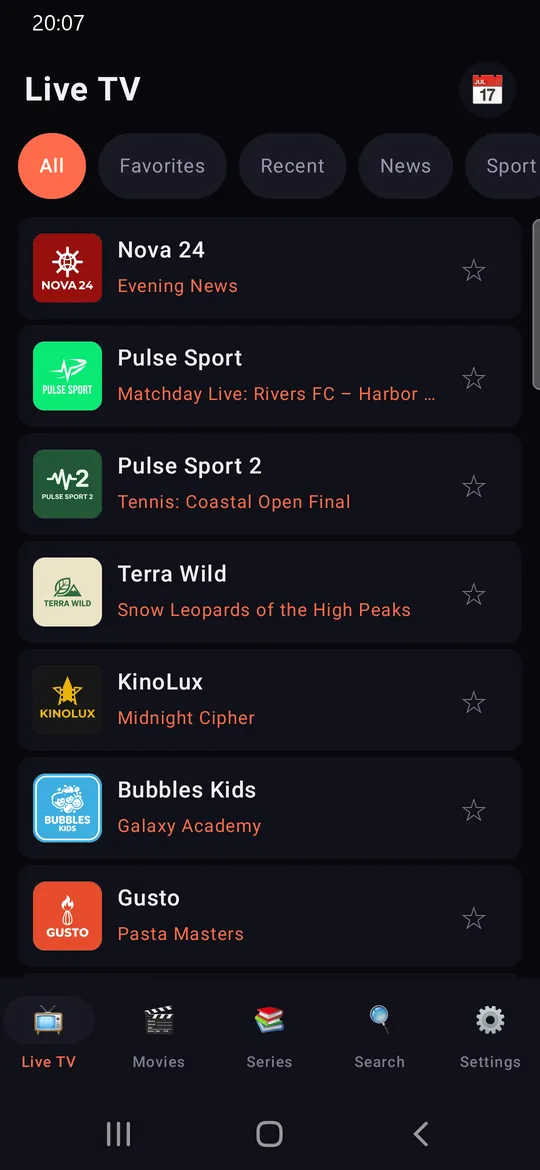
Finding your way around
The bar at the bottom has five tabs: Live TV, Movies, Series, Search and Settings (⚙). Films and series from your subscription appear in their own tabs, with posters.

Adding another playlist later
- Open the Settings tab (⚙).
- Under Add a new playlist, fill in Playlist name and Playlist URL (.m3u / .m3u8).
- Tap + Add playlist.
To add a second Xtream login here, enter it as a link: http://server:port/get.php?username=…&password=…&type=m3u_plus, with your own server, username and password. The free version keeps one playlist; more than one needs Pro once the 7-day trial ends.
Under each playlist in Settings you can choose Imported content: Everything, Live only or VOD only. Live only keeps a very large playlist light on the phone.
Watching on mobile data
Away from Wi-Fi, Flumio asks before it plays: You are off Wi-Fi. An hour of HD viewing can use several GB. Tap Play anyway to go ahead. You can turn the question off in Settings → Warn on mobile data.
If it doesn't load
- “This doesn't look like an M3U playlist.”
- The link returned something else, often a web page from the provider. Check that you copied the whole link, including everything after the
?. - “Couldn't load the playlist.”
- Check the link or the login for typos, and that your subscription is active. Some providers allow one device at a time: stop watching elsewhere and try again.
- “The playlist is empty.”
- The provider returned a playlist with no channels. Usually the subscription has expired or no channels are assigned to it yet; ask the provider.
- “The list is too large”
- The playlist is bigger than the app accepts. Ask the provider for a smaller version, for example live channels only.
- “Network error: no connection.”
- The phone is offline. Check Wi-Fi or mobile data and try again.
Questions
Does a playlist I add on the phone also appear on my LG TV?
No. Each device keeps its own playlists. To get a playlist onto an LG TV quickly, use the phone to send it to the TV: see How to add an M3U playlist on an LG TV.
Is the app free?
Yes. Every new install gets 7 days of full Pro. After that, live TV from one playlist stays free. Pro, bought in the app through Google Play, adds unlimited playlists, movies and series, the TV guide and catch-up.
Where does the TV guide come from?
From the guide link in your playlist, picked up automatically. You can also enter one yourself in Settings → TV Guide (EPG).