
Watch IPTV movies and series (VOD) on an LG TV
Many IPTV subscriptions come with a library of films and series, often called VOD (video on demand). In a plain channel list they're thousands of entries with cryptic names; in Flumio they get their own tabs with posters, descriptions, seasons and a resume point for everything you start. Here's how to use them on an LG TV.
Films and series come from your provider, if your subscription includes them. Flumio shows them; it doesn't add any of its own.
Where to find them
At the top of the menu, next to Live TV, are the Movies (VOD) and Series tabs. Each has the provider's categories on the left and a grid of posters on the right. Highlight a poster to see its plot, rating, year, genre and cast beside it.
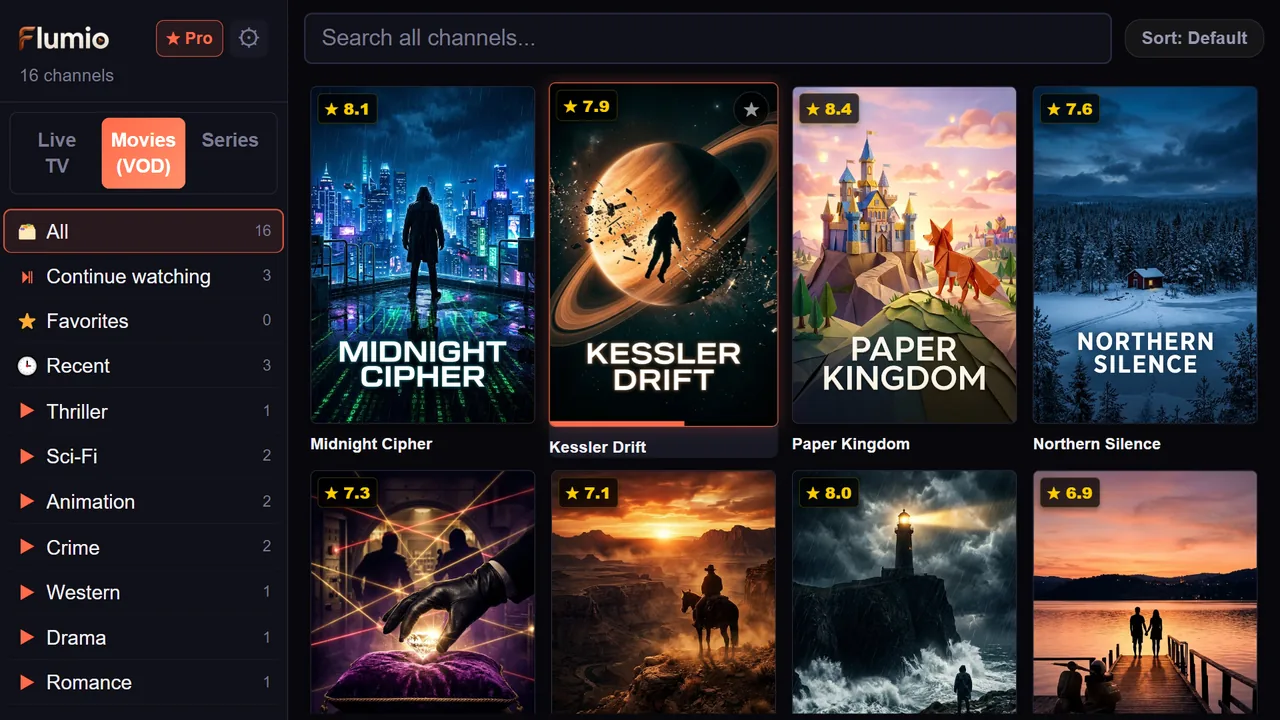
Films and series are part of Flumio Pro. Every new install gets 7 days of Pro; after that, the tabs show that they're available in Pro, and live TV keeps working.
Open and play a film
- Highlight a poster and press OK. The film's screen opens with its plot, cast, director and length.
- Choose ▶ Play.
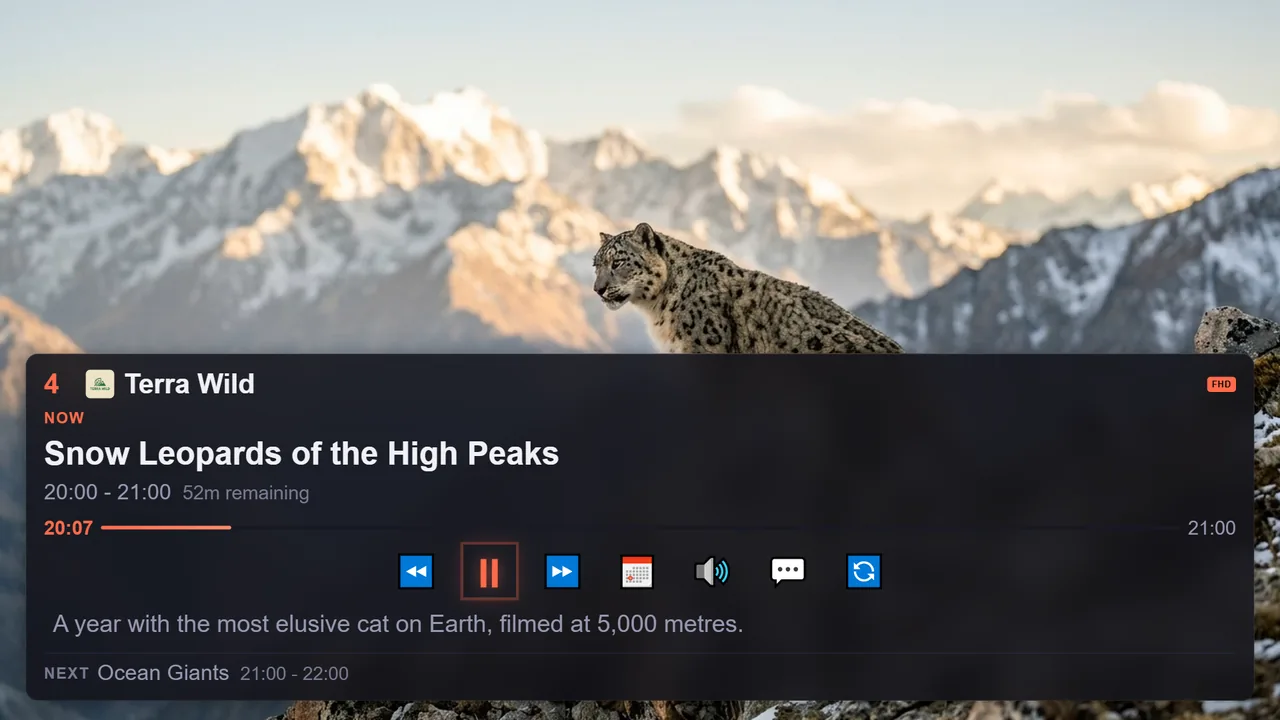
- Press OK during playback for the bar at the bottom; press Back to return to the film's screen.
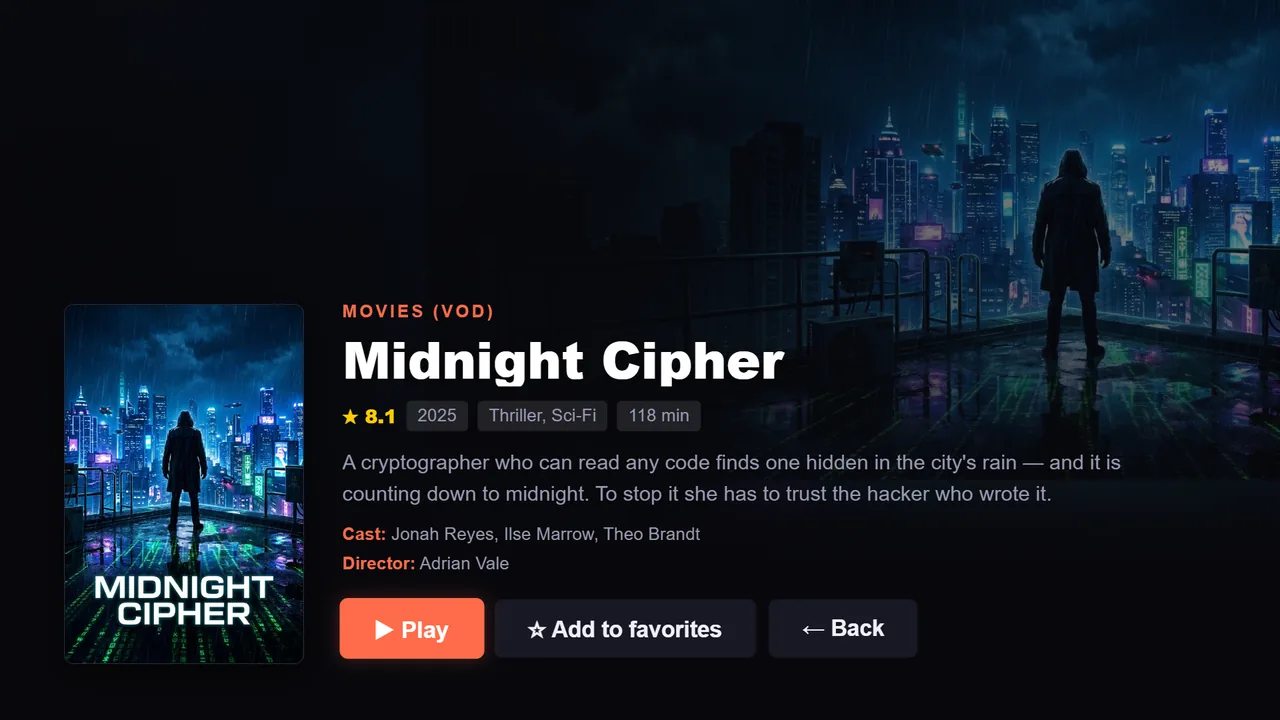
The plot, cast and artwork come from your provider's server. Some providers fill them in for every title, others for few or none; then the screen shows just the title.
Pick up where you left off
Flumio remembers where you stopped each film and episode. Open it again and it continues from there. Everything you've started is also collected in Continue watching at the top of the categories. To take a title off that list, highlight it and press yellow; it will then start from the beginning.
Series: seasons and episodes
- On the Series tab, open a show with OK. Its seasons appear as cards.
- Open a season to see its episodes, numbered in order.
- Highlight an episode to read about it; press OK to play it. The Back card returns to the seasons and the list of shows.


During playback
- Left / Right: skip back or forward, without opening the bar.
- On the bar: ⏮ back to the beginning, ⏪ / ⏩ 30 seconds back or forward, and the progress bar to jump anywhere. With the Magic Remote, point at the bar and click.
- 🔊 (Audio): another audio track, such as a different language.
- 💬 (Subtitles): subtitles, when the film has them or the provider offers subtitle files for it. If they come too early or too late, use Sync in the same window: + if they're early, − if they're late.
- 🔄 (Resync): realigns sound and picture if they drift apart.
Finding something to watch
- Sort (next to the search box): Rating, Name, Newly added or Year, instead of the provider's order.
- New: titles the provider added in the last two weeks, once there are any.
- Search: type part of a title in the search box at the top of the tab.
- Favorites: press green on a poster, or choose ☆ Add to favorites on a film's screen.
More on organizing: Favorites, categories and search.
Questions
Why don't I see the Movies and Series tabs?
They appear when your playlist contains films or series. If you added the playlist with Imported content set to Live only, change it to Everything in Settings. If the provider's playlist has no films or series, the tabs stay hidden.
A film won't start or has no sound.
Some files use a format the TV can't decode. Try 🔊 for another audio track; if the picture never starts, ask the provider whether there's another version of the title.
Can I download films to watch offline?
No. Films and series play straight from your provider's server, so you need an internet connection.
Can I lock films for children?
Yes, single films, whole series or whole categories: see Parental controls on an LG TV.