
How to put an M3U file on an LG TV from your phone or computer
Some providers send the playlist as an .m3u file attached to an email, not as a link. An LG TV can't open that file from a USB stick in an IPTV app, but you don't need to: with Flumio you send it over your home Wi-Fi from a phone or computer in under a minute. The same page also takes pasted playlist text, a link or an Xtream Codes login.
You need the playlist from your TV provider. Flumio is a player and does not come with any channels.
Before you start
- Flumio is installed and open on the TV. The TV only accepts files while the app is on screen.
- The phone or computer is on the same home network as the TV: the same Wi-Fi, not a guest network or mobile data. A computer connected by cable to the same router works too.
- The .m3u or .m3u8 file is saved on the phone or computer, for example downloaded from the email.
Step 1: Open the upload page
The TV shows a QR code and an address for this:
- On first start, on the Add your first playlist screen, on the left.
- Later, in Settings (the gear icon or the blue button) under Upload Playlist.
Scan the QR code with the phone's camera, or type the address into a browser on the phone or computer. It looks like http://192.168.1.50:4000/upload?t=…, with your TV's own numbers.
Step 2: Send the file
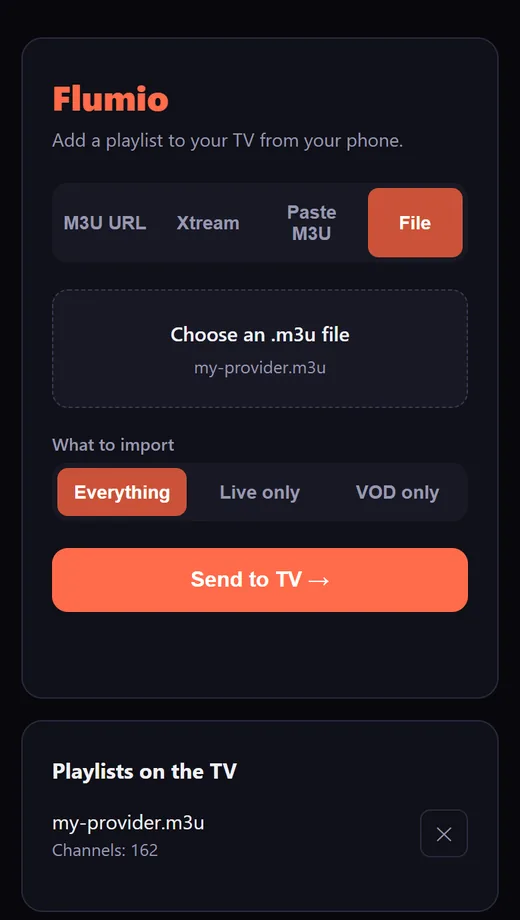
- Choose the File tab.
- Tap Choose an .m3u file and pick the file. You can pick several files at once.
- Under What to import, leave Everything, or choose Live only for a very large playlist.
- Tap Send to TV →. The page says Sent! Check your TV. and the channels load on the TV.
Or paste the playlist text
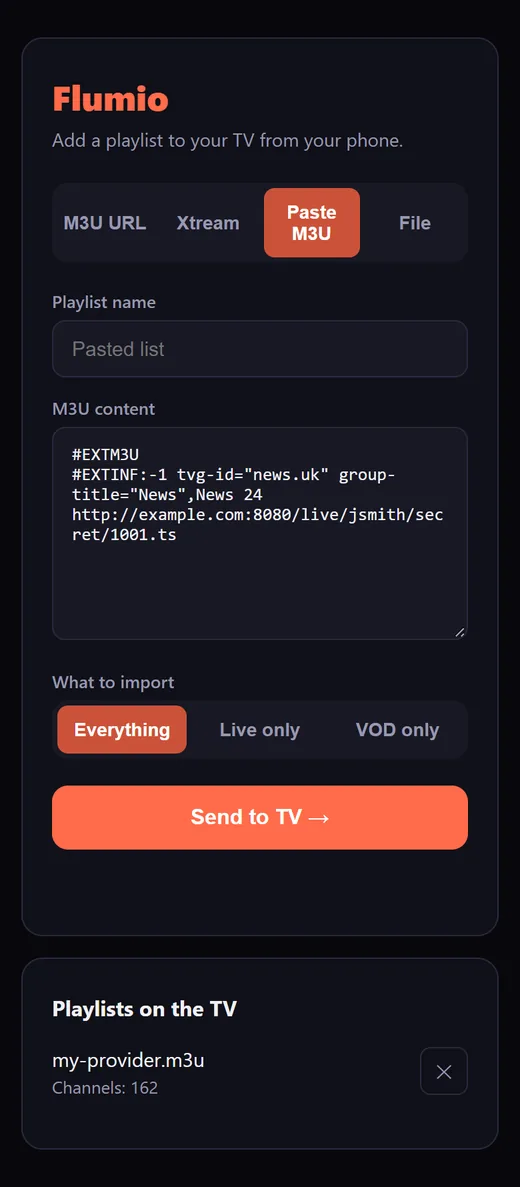
If the playlist came as text in an email or a message, choose Paste M3U, give it a name, paste everything into M3U content (it starts with #EXTM3U) and tap Send to TV →.
Got a link or a username and password instead? The M3U URL and Xtream tabs on the same page take those; see How to add an M3U playlist and Xtream Codes on an LG TV.
Managing what you sent
Under the form, Playlists on the TV lists everything sent to this TV, with the number of channels in each. The ✕ next to a playlist removes it from the TV.
A file is a snapshot: it doesn't change when your provider changes its channels. When the provider sends you a new file, send it again and remove the old one. If the provider can give you a link instead, type it on the TV: Flumio then fetches it again by itself.
If it doesn't work
- The page doesn't open, or “No connection to the TV”
- The phone or computer is on another network (guest Wi-Fi, a second router, mobile data), or Flumio isn't open on the TV. Bring Flumio to the screen and connect to the same Wi-Fi as the TV. If the TV was switched off, scan the QR code again: the address can change.
- “This doesn't look like an M3U playlist.”
- The file isn't a playlist; it must start with
#EXTM3U. Some email apps save an attachment as a web page or a zip file: download the original attachment again, or unzip it first. - “Choose a file.” / “Paste the M3U content.”
- The form was sent empty. Pick the file or paste the text first.
- It was sent, but the channels don't play
- The file arrived; the channels inside it don't answer. Check that the subscription is active, or see IPTV not working on an LG TV.
Questions
Can I load an M3U file from a USB stick?
No. Send it over Wi-Fi from a phone or computer as described above; it's quicker than copying to a stick anyway.
Does the file go through the internet?
No. The phone or computer sends it straight to the TV over your home network.
Do I need an app on the phone?
No. The upload page opens in the phone's browser; nothing to install.
Will my playlist update when the provider adds channels?
Not a file: send the new version again when you get one. A link typed on the TV is fetched again regularly, so ask your provider for a link if you can.